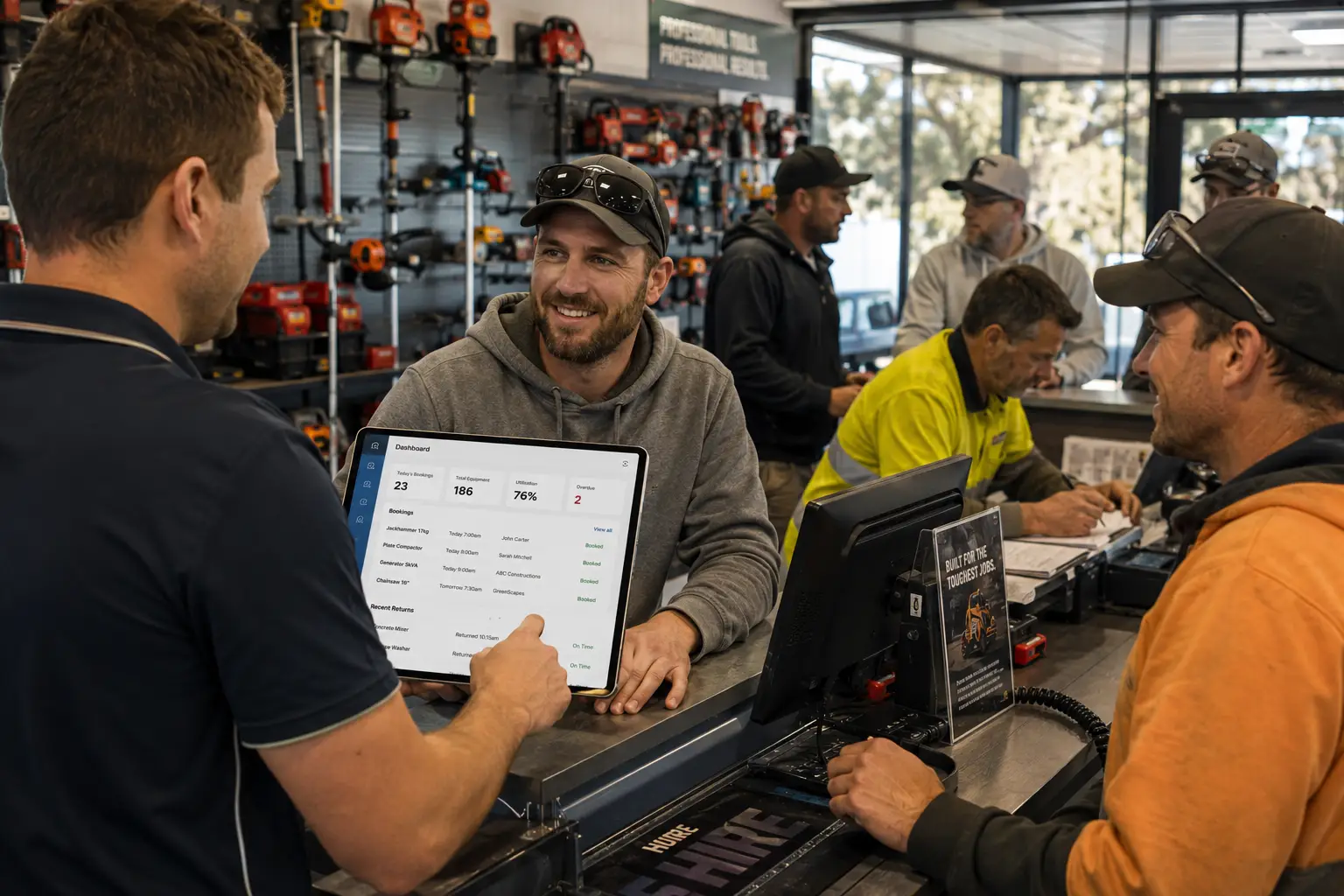
We’ve all been there. You’re ready to close a big rental deal, the customer has their credit card out, and you hit “Process.” Then… the dreaded loading circle starts spinning.
Your customer is staring at you, you’re staring at the tablet, and the tension in the room rises. In the rental world, where equipment moves fast, a “dead zone” in your warehouse or storefront isn’t just an annoyance—it’s a bottleneck that costs you money and professional points.
Here is how to troubleshoot your shop’s WiFi and turn your warehouse into a high-speed connectivity zone.
Why Your WiFi is Failing (The Science of the Shop)
Before you buy new gear, you need to understand why your signal is dropping. Rental shops have two unique enemies:
The “Faraday Cage” Effect: Metal is the natural enemy of WiFi. If your router is sitting on a metal shelf or surrounded by aluminum ladders, engine hoists, or steel racks, you’ve essentially trapped your internet in a cage. The signal can’t “bounce” through metal; it just dies.
Channel Interference: If your shop is in a commercial strip in Toronto or a busy block in Chicago, you’re fighting for “airspace.” Every neighboring business has its own WiFi, and if you’re all on the same frequency channel, it’s like ten people trying to talk through one megaphone.
The Fix: 3 Steps to Zero-Latency
1. The “High and Mighty” Rule
The Hack: Move your router. Most shop owners tuck the router under a desk or behind a filing cabinet. Stop that. WiFi signals travel much better “showering” down from above than fighting through furniture.
The Solution: Mount your router at least 6–8 feet high, ideally in the center of the room. Keep it at least 3 feet away from large metal objects.
2. Upgrade to a Mesh Network
If your warehouse is larger than 1,500 square feet, a single router isn’t enough. You need a Mesh System. Unlike “extenders” (which just repeat a weak signal), Mesh units work together to create a single, seamless blanket of internet.
Recommended Gear (US/Canada): * TP-Link Deco X55: Great for budget-conscious shops.
Ubiquiti UniFi6 Mesh: The “gold standard” for warehouses with high ceilings and heavy interference.
The Pro Move: Place one “node” near your Point of Sale and another near your inventory loading dock.
3. Switch Your Channel
If your hardware is fine but the speed is slow, you likely have interference.
The Hack: Use a free app like WiFi Analyzer (Android) or NetSpot (Mac/PC). It will show you which channels are crowded. Log into your router settings and manually switch from a crowded channel (usually Channel 1 or 6) to a “clear” one.
Quick Troubleshooting Checklist
| Problem | Immediate Fix |
| Lag only at the counter | Move the router away from the metal cash drawer. |
| Signal drops in the back | Add a Mesh node to the warehouse floor. |
| Slow speeds during peak hours | Switch your frequency from 2.4GHz to 5GHz for less interference. |
Take Your Operations to the Next Level
Fixing your WiFi is the first step to a professional checkout experience. The second step? Having the right software to run on that lightning-fast connection.
Rentrax is a powerful, cloud-based rental management software designed to handle everything from inventory tracking to seamless online bookings. When your WiFi is optimized and your software is built for speed, your business becomes unstoppable.
Ready to streamline your rental business? Explore Rentrax today.